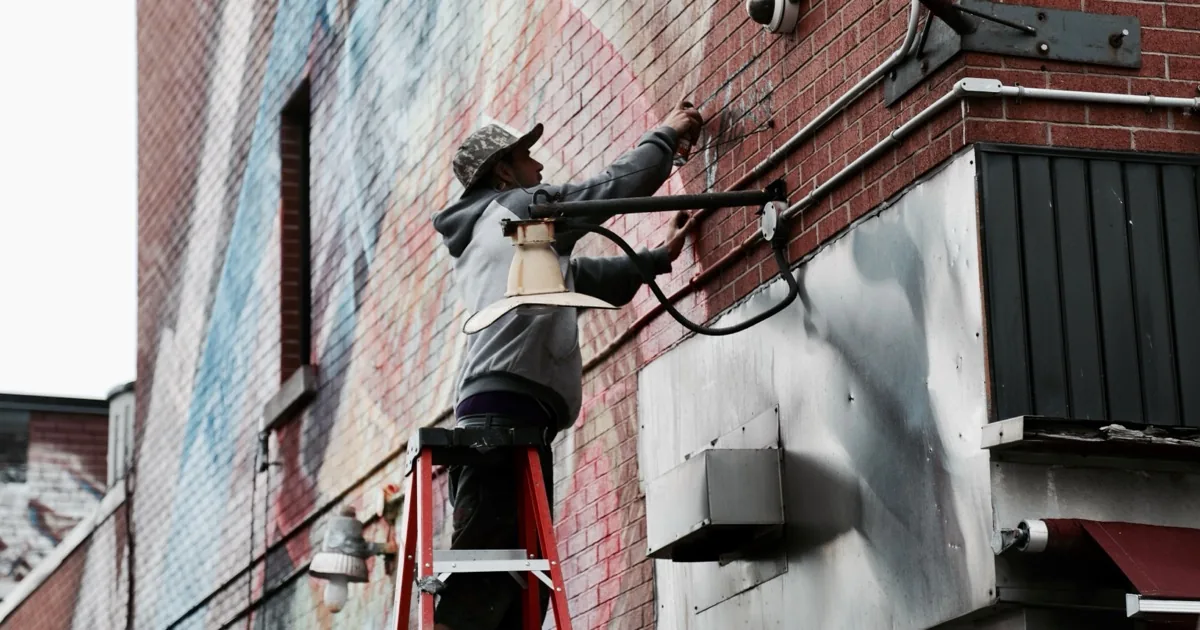
A restaurant manager calls at 6:42 a.m. and says, “All our cameras are offline.” The dining-room monitor is showing six live views, but the manager’s phone app will not connect. That is a remote-access problem until the evidence says otherwise. Sending a technician to replace cameras would start at the wrong end of the system.
A useful security camera offline service call begins with scope. Ask which cameras are missing, whether video appears on the recorder’s local monitor, whether another authorized user can view it, and what exact message appears in the app, browser, or video-management software. Then capture the power method, connection path, recorder or server, first failure time, recent site changes, and every step already tried. Do not make a factory reset the receptionist’s default response. It can erase the configuration that support needs to inspect.
Define “offline” by what the caller can still see
Ask the caller to name the affected camera, not simply count it. “Rear loading door” is useful. “Camera 7” is useful if that is how the recorder labels it. “The outside one” will create confusion when the technician finds four exterior cameras.
Now establish the viewing points. Is the picture missing from a monitor connected to the recorder? Is it missing from a computer on the same property? Does the failure appear only in a phone app away from the site? Can another authorized user sign in? If recorded playback is available, when does the last recording end?
Keep live view and recording separate. A black live tile does not prove that all retained video is gone. A remote app failure does not prove that local recording stopped. The office should record both observations without turning either one into a diagnosis.
Scope often gives the first useful boundary. One missing camera with seven working cameras points the investigation toward that camera’s power, cable, radio link, port, or configuration. Every camera missing from the local recorder suggests a shared component or display path deserves attention. Local video working while remote access fails keeps the initial questions around the internet connection, router, account, app, and remote service.
Map the installed path before assigning a cause
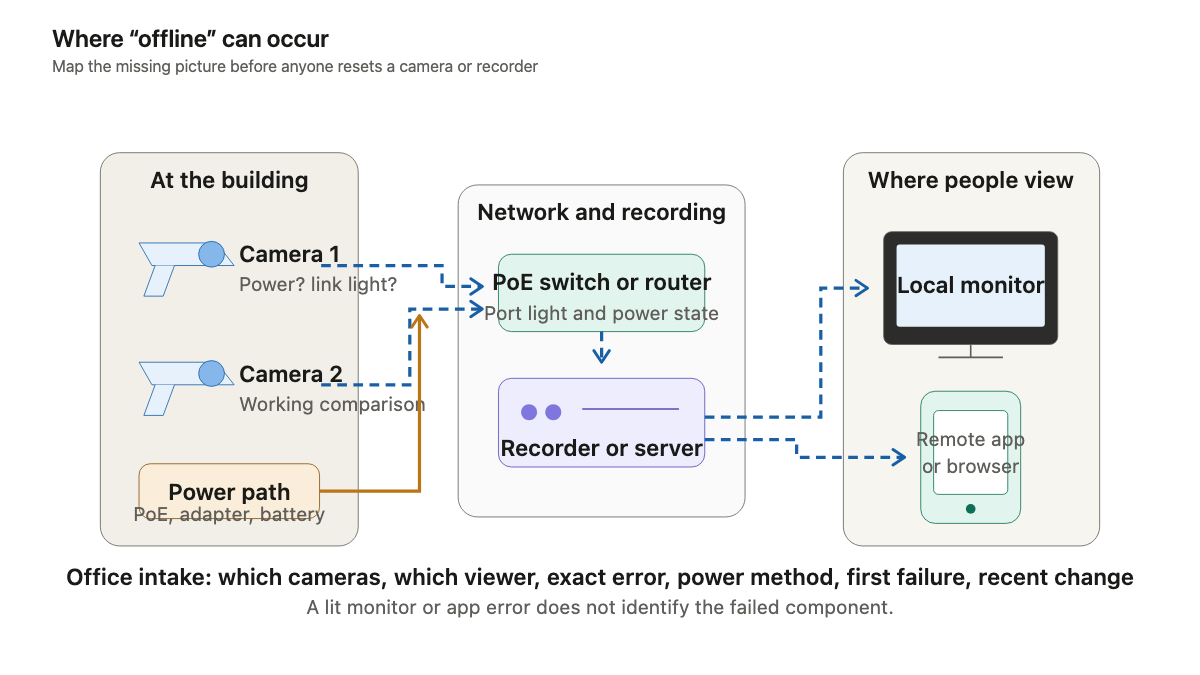
The caller may know the camera brand but not how it connects. Ask whether the camera uses a network cable, Wi-Fi, a separate power adapter, a battery, or an unknown method. For a wired system, ask whether camera cables terminate at the recorder, at a Power over Ethernet switch, or somewhere the caller cannot identify safely.
The Axis network troubleshooting guide describes switches, routers, cables, and proxies as parts of the path between a camera and its viewer. Its support-case checklist asks for the network topology, device details, the power method, comparison with working devices, recent network changes, and prior investigation. Those are good intake categories because they preserve the system shape without asking reception to choose the failed part.
Ask for photographs when they are safe to take. A useful set includes the affected camera from the ground, its visible label if readable without climbing, the recorder’s front panel and screen, the network or PoE switch lights, and the exact error on the viewing device. Do not ask a caller to climb, remove a camera cover, open powered equipment, or reach into a rack they cannot access safely.
For each image, write down what it shows. “Photo attached” is weak. “Photo 2 shows recorder model NVR-16P, power light green, network light blinking, screen message Network disconnected” gives support something to work with.
Record the timeline and the change that came before it
“Stopped working last week” leaves too much open. Ask when someone last saw a normal live view and when the first failure was noticed. If those times are different, keep both. A camera may have failed after closing on Friday and gone unnoticed until Monday morning.
Then ask what changed. Useful prompts include an internet-provider visit, a new router, an electrical outage, a storm, building work, painting, roof repair, a moved recorder, a changed password, an app update, a phone replacement, a new network switch, or landscaping near an underground cable route. Record the event and time without declaring it the cause.
The Reolink camera-offline guide separates device power, the viewer’s network or phone, physical connections, and camera state. It also asks customers who contact support to include the steps already taken and their results. That last part matters. “Rebooted everything” hides the sequence. “Manager restarted the router at 6:20; local monitor stayed live; phone app still showed Connection Failed at 6:27” preserves it.
Do not repeat actions blindly. If someone unplugged a switch, changed a cable, removed a camera from an app, or reset a password, capture which device and what happened next. If nobody knows what a button does, leave it alone for the technician.
Treat resets as a controlled service action
A restart and a factory reset are different events. The Reolink guide says a hard reset restores a camera to factory settings and requires reconfiguration. Other manufacturers have their own procedures, credentials, adoption steps, licensing, and recorder relationships.
Reception should therefore avoid a universal “hold the reset button” script. Before an authorized technician considers a reset, the ticket should identify the model, configuration owner, recording system, account access, current evidence, and whether the company has a saved configuration. A reset performed too early can turn one offline camera into a camera that has also lost its site settings.
The same restraint applies to cable and power tests. A trained onsite contact may be able to report status lights or move a patch cable under an approved support procedure. A restaurant employee standing on a chair under an exterior camera should not. The service company’s safety policy decides which observations and actions are suitable for the caller.
Route by outage scope, security exposure, and access
The office can route the service call once it knows the failure boundary. Start with the live security exposure. Is this a home with one driveway camera missing, a warehouse with every loading-dock view unavailable, or a childcare facility whose local recording appears normal while one administrator cannot use the app? The equipment question and the operational risk belong in the same ticket, but they are not the same judgment.
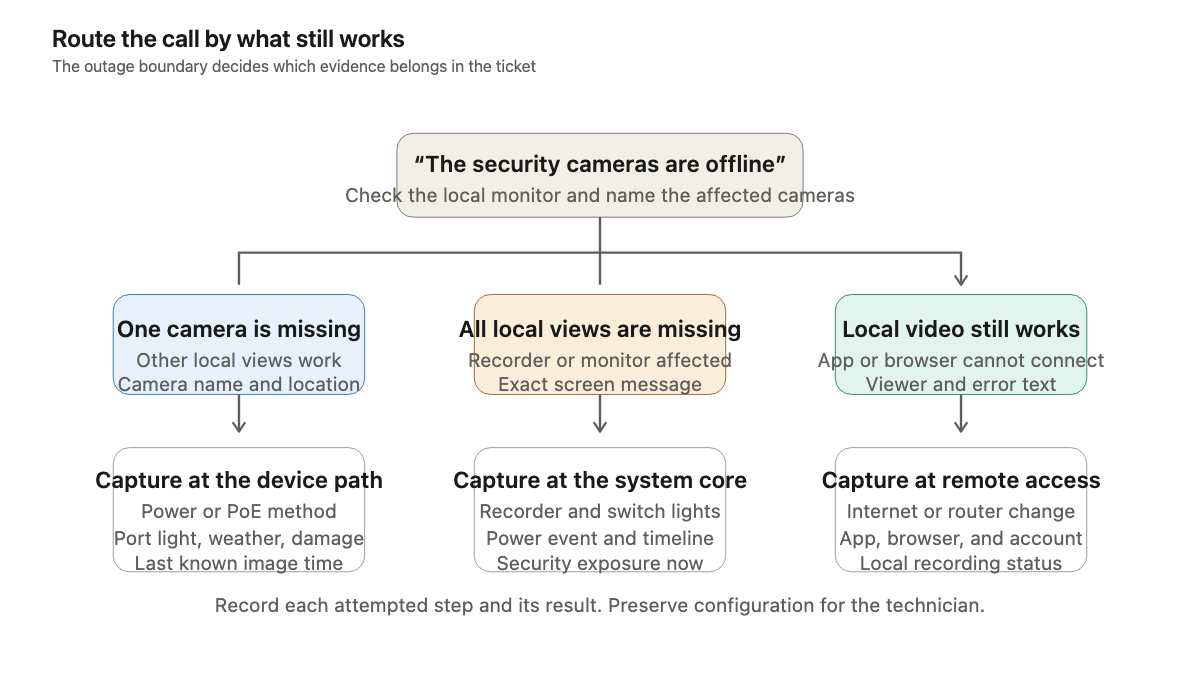
For one missing camera, capture its location, power method, connection type, visible condition, relevant switch or recorder port, weather exposure, and last image time. For all local views missing, capture recorder and switch status, the monitor message, recent power events, and whether any recording can be played back. When local video works but remote access does not, capture the app or browser, user account owner, exact error, internet or router change, and whether another authorized viewer has the same result.
Access can decide whether the first response is remote support or a field visit. Record who can unlock the building, where the recorder and network equipment sit, whether the rack room requires an escort, working hours, gate instructions, ladder restrictions, parking, pets, and the onsite contact. Never promise that remote support can restore the system. Never promise that a field technician will arrive with the right replacement until the installed model and likely parts are confirmed.
For businesses planning a new system, the security camera installation call guide covers camera count, coverage, mounting, power, and access before a quote. Questions about how much video should be retained belong in the separate camera storage and retention guide.
Give the technician a ticket that preserves evidence
A complete ticket should include:
- Caller, site, authorized contact, callback number, service window, and access restrictions
- Affected camera names and count, plus one working camera for comparison when available
- Status on the local monitor, recorder playback, onsite computer, remote app, and second authorized viewer
- Exact error text, first known failure, last known good image, screenshots, and safe equipment photographs
- Camera, recorder, switch, router, app, and video-management brands or models that the caller can identify
- Power and connection method for the affected camera, with visible lights recorded as observations
- Recent power, internet, router, construction, weather, credential, software, or equipment changes
- Every action already attempted, in order, with the result after each action
- Current security exposure and any temporary site procedure approved by the customer
A clean handoff might read: “Loading Door East went offline between 10:14 and 10:22 p.m. The other eleven local views and playback work. The remote app shows the same one camera offline for two authorized users. Camera is connected by Ethernet to PoE switch port 8; the caller reports no port light. No reset attempted. Roofers worked above that doorway yesterday. Recorder model and three photos attached. Facilities manager can provide roof and network-room access after 8 a.m.”
That note does not claim a damaged cable, failed port, or dead camera. It narrows the visit and protects the evidence. An AI receptionist can collect the same fields after hours if its script respects site safety and stops short of diagnosis. The best final question is simple: “What changed immediately before someone noticed the missing picture?”